Ask for a correction
At a glance
Section titled “At a glance”- Time: about two minutes.
- Who: an employee, on the phone.
- Difficulty: easy.
Purpose
Section titled “Purpose”Ask a manager to fix a punch you missed or got wrong, and see what became of your request.
Ingredients
Section titled “Ingredients”- The Employee Mobile app, signed in.
- The date and time of what really happened.
- A few words that explain it.
Expected result
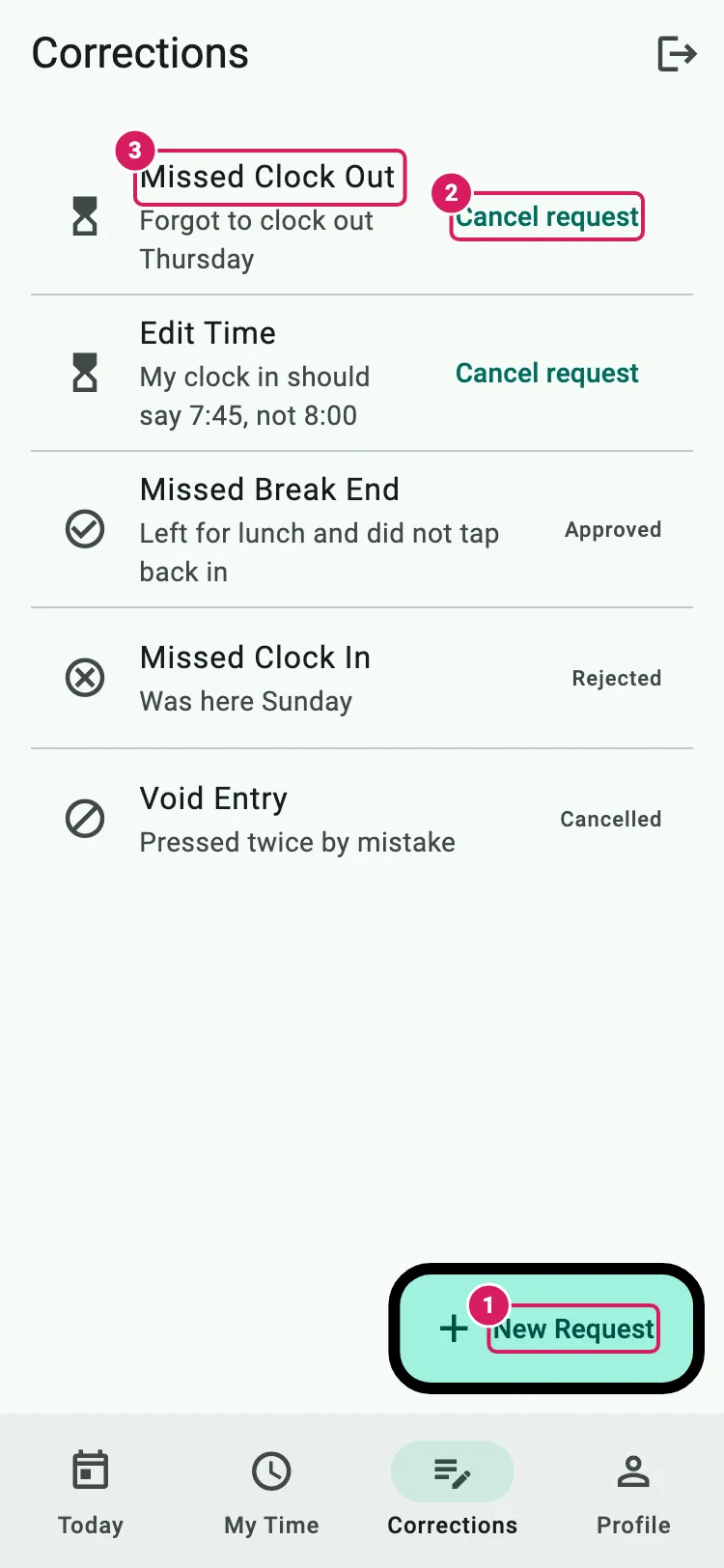
Section titled “Expected result”Your request waits in the list with a Cancel request button. A manager decides it in Review. It then shows as approved, rejected or cancelled, and an approved change is added to your time as a new adjustment.
- Open the Corrections tab and touch New Request.
- Choose the Type of correction: Missed Clock In, Missed Clock Out, Missed Break Start, Missed Break End or I worked a day with nothing recorded.
- Touch Choose date & time and pick the real date and time. The calendar goes back 90 days.
- Write the Reason and touch Send request.
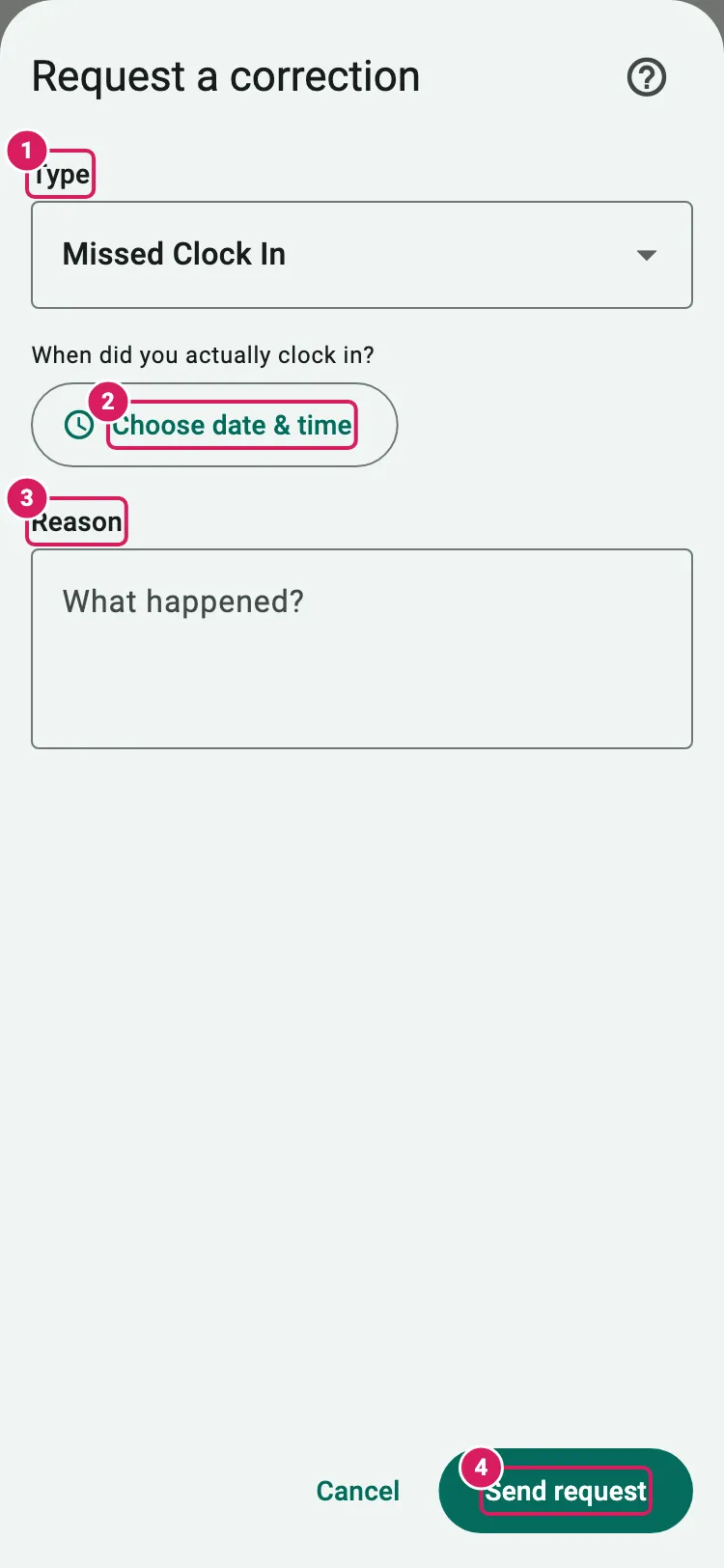
The form asks for the date and time and for a reason; without them it stays open and tells you what is missing.
To take back a request, touch Cancel request while it is still waiting. You must say why: the question is Why are you cancelling it?. Only you can cancel your request, and only while it is waiting. Touch Keep request if you change your mind.
Check your work
Section titled “Check your work”The request appears in the list. When a manager decides it, its icon changes: a check for approved, a cross for rejected, a block for cancelled.
What next
Section titled “What next”- The Corrections screen
- A late fix to a closed period, if the day was already paid