Time Logs: Detail
At a glance
Section titled “At a glance”The Detail tab of Time Logs lists the recorded punches: who made them, what kind it is, when it counts and where it came from. Use it to find one punch, to see which ones a manager adjusted, and to download the list as a CSV file. You need the permission to view time logs.
The screen
Section titled “The screen”The tab lists the punches of the last 30 days, the newest first, 100 at a time. Above the list are a search box, a filter for the type of punch and two date buttons. Under the list, a line says how many punches are shown, and Load more reads the next 100. The CSV button is at the top of the page.
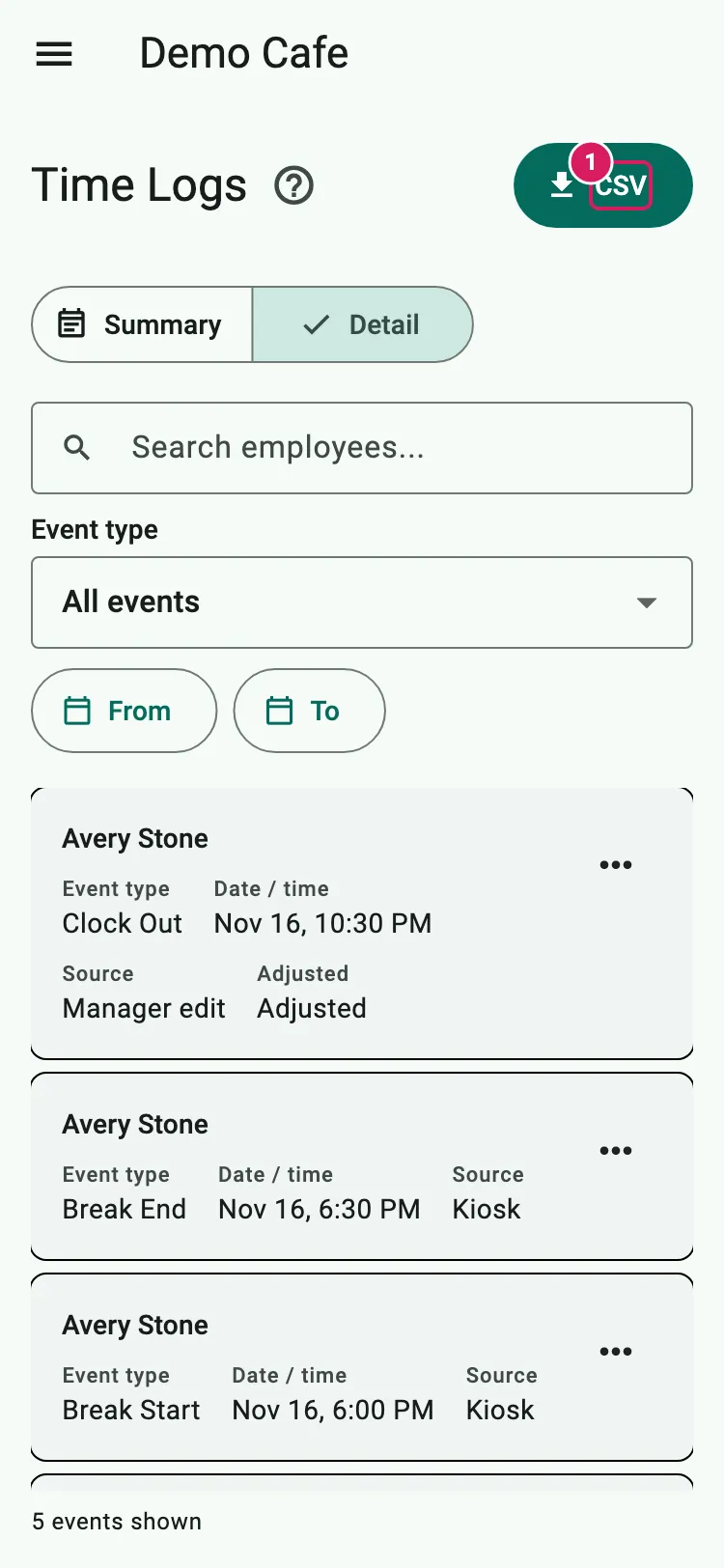
Parts of the screen
Section titled “Parts of the screen”- The CSV button downloads the punches of the last 30 days as a file that a spreadsheet can open.
Options and filters
Section titled “Options and filters”- The search box finds an employee by name (Search employees...).
- Event type limits the rows to Clock In, Clock Out, Break Start, Break End or Edited by a manager, the punches of shifts that a manager adjusted (a fixed time, a break added or removed, a voided punch or an added day). Its first choice is All events. The search and the filters work on the punches already shown: press Load more to bring in older ones.
- From and To limit the rows to a stretch of dates inside the last 30 days.
- Touch a column title to sort. The list opens with the newest punch first.
Actions
Section titled “Actions”- Load more shows the next 100 punches under the ones you have. It goes away when there are no more. If it cannot read them it says so and the button stays, so you can try again.
- CSV downloads a file named with the company's date, for example
time_logs_2026-11-17.csv, and says "CSV downloaded." The file has every punch of the last 30 days, not only the ones shown, and not filtered by your search or filters. Each line has the employee, the kind of punch, the time, the source, the location and whether it was adjusted. - More actions on a row, for managers who may edit time, opens the edits of that shift: Fix clock-in, Fix clock-out, Add break, Remove break, Void punch and Add Missing Day. See Fix a shift.
Colours, icons and badges
Section titled “Colours, icons and badges”- The columns are Employee, Event type, Date / time, Source, Adjusted and, for managers who may edit, Actions.
- Source says where the punch came from: Kiosk, Mobile app, Web, Manager, Manager edit or System.
- A punch that has been adjusted says Adjusted.
- A row marked Self-edit was approved by the person it is about, because no other manager could.
Phone and desktop
Section titled “Phone and desktop”On a phone each punch is a card. On a desktop the table shows all the columns. On a narrower screen it shows fewer columns, and the rest are in the details of the row.
Common questions
Section titled “Common questions”Where are the older punches? The tab reads the last 30 days only. For older days, use Time Logs: Summary, which can reach back a year, 90 days at a time.
The list is empty. The page says "No time log entries in the last 30 days." when there is nothing, and "No entries match your search or filters." when a search or a filter hides every row.