Fix a shift
At a glance
Section titled “At a glance”- Time: about three minutes.
- Who: a manager who may approve corrections.
- Difficulty: easy.
Purpose
Section titled “Purpose”Correct a clock-in or a clock-out time, add or remove a break, or void a punch that was made by mistake. Use it when you already know what the right times are. If the employee asked for the change, work the request in the review queue instead.
Ingredients
Section titled “Ingredients”- Permission to approve corrections.
- The shift to fix, in Attendance or in Time Logs.
- The right time or times, and a reason.
Expected result
Section titled “Expected result”The shift shows the new times, its hours change with them, and the change is saved with your reason in the audit history. The first punch is never overwritten.
- Find the shift in Attendance or in Time Logs and open More actions on its row.
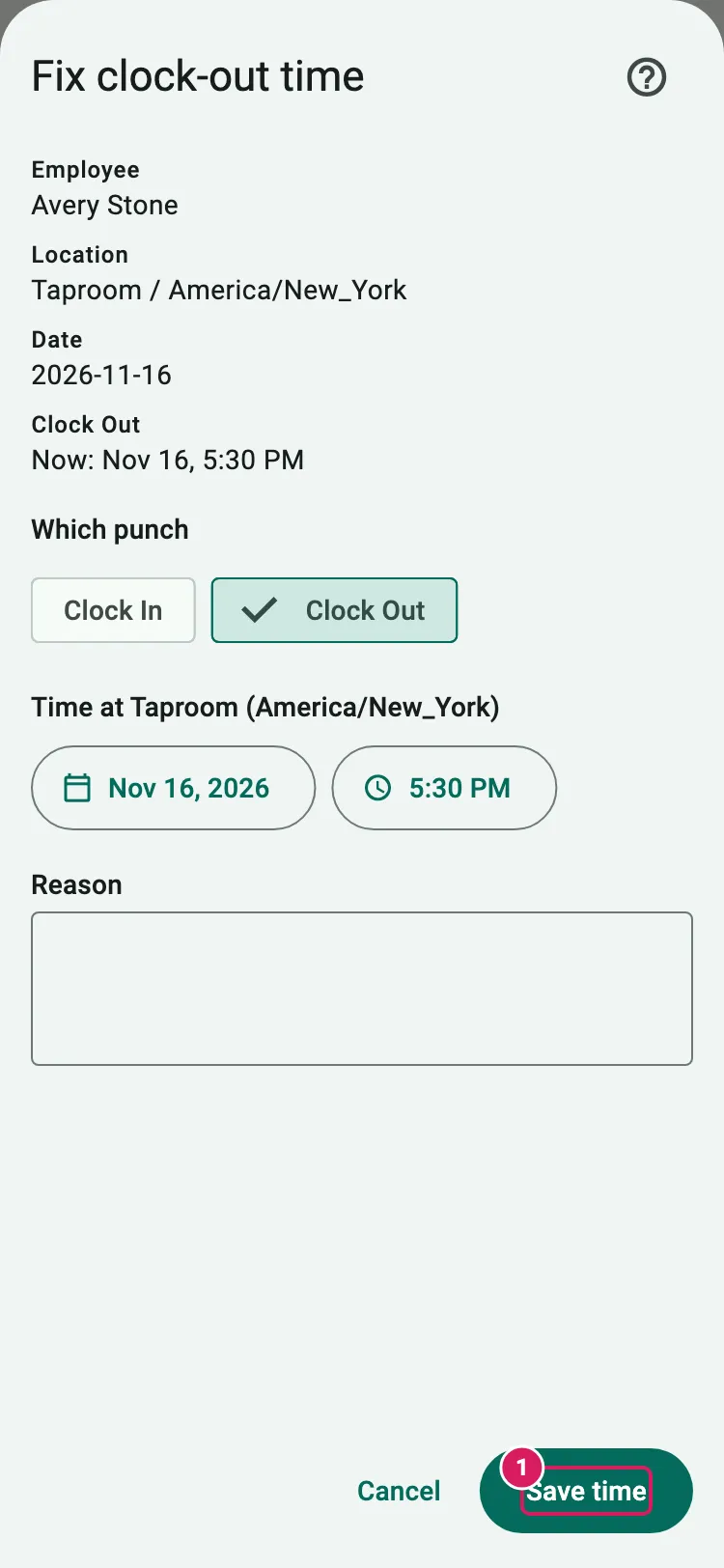
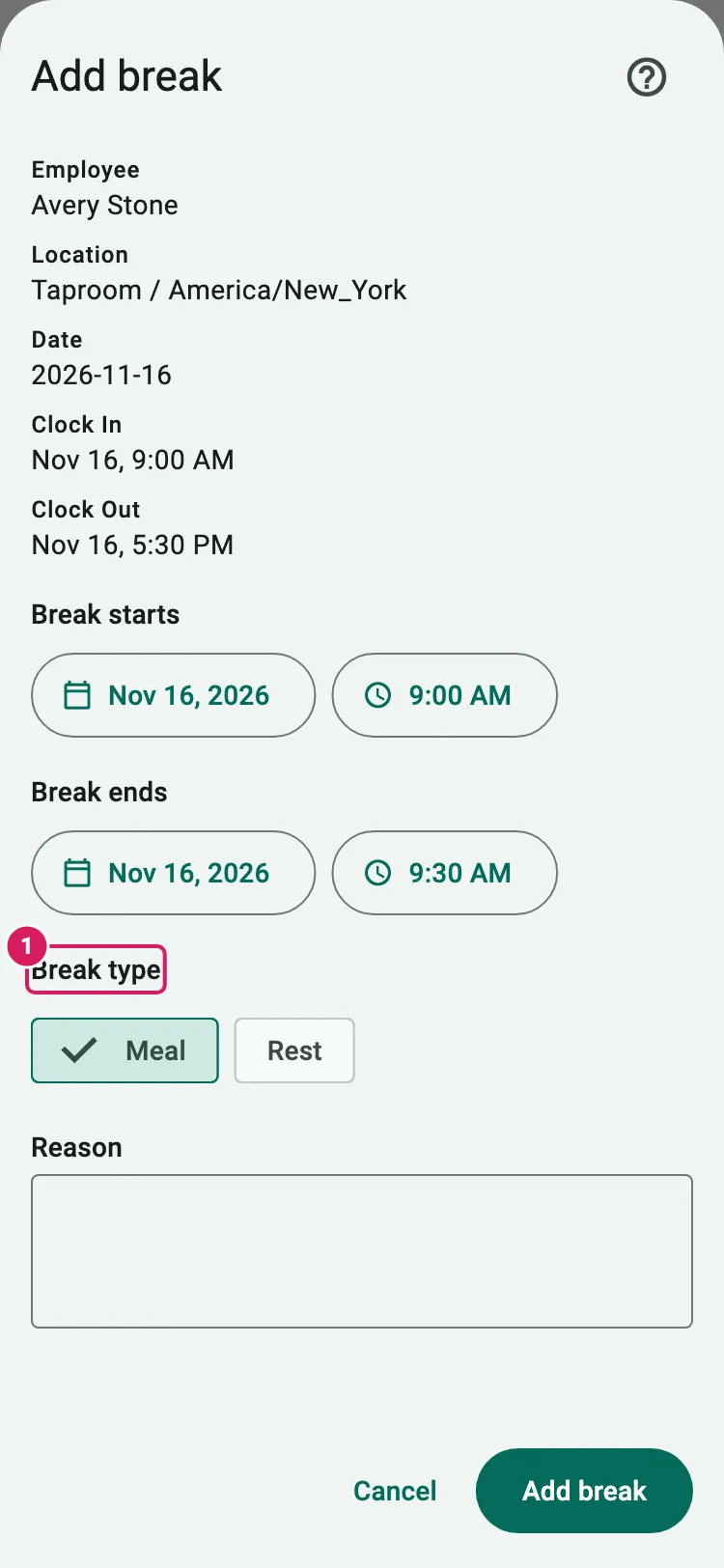
- Choose the edit: Fix clock-in, Fix clock-out, Add break, Remove break or Void punch.
- Fill in the form:
- For a time, type the new time. It is the clock time at the shift's place, and the form shows the time it has now. When the shift has a clock-in, choose which punch to change.
- For Add break, give Break starts and Break ends inside the shift, and the Break type, Meal or Rest.
- For Remove break, choose the break to remove.
- For Void punch, choose the punch to void.
- Write the Reason. It is required.
- Touch the button that names the edit (Save time, Add break, Remove break or Void punch). The page says "Time updated.", "Break added.", "Break removed." or "Punch voided."
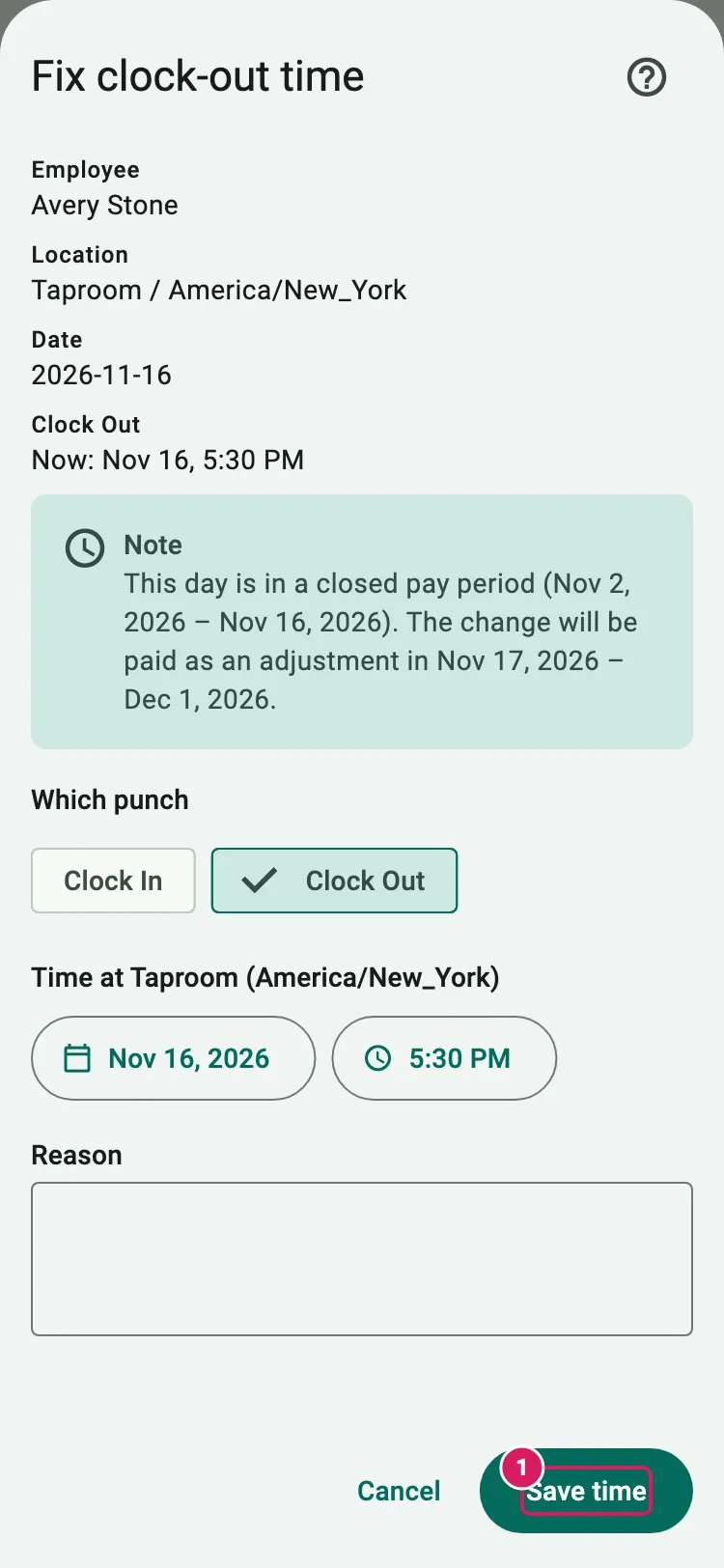
If the day is in a closed pay period, the form first says so: "This day is in a closed pay period (...). The change will be paid as an adjustment in ...". Read it, then continue.
Check your work
Section titled “Check your work”- The row shows the new time, and the worked hours changed.
- After a time fix or a void, the recorded punch says Adjusted in Time Logs, Detail.
- For a late fix, the page says where the adjustment will be paid.