Time Logs: Summary
At a glance
Section titled “At a glance”The Summary tab of Time Logs shows one row for each shift, with the times, the hours worked and the break time. Use it to check the hours of a day or a week and to open the edits of a shift. You need the permission to view time logs.
The screen
Section titled “The screen”Time Logs has two tabs, Summary and Detail. The Summary tab opens on the last 14 days. Under the tabs are a search box, a position filter and the dates button. The rows are grouped by day, with the date above each group.
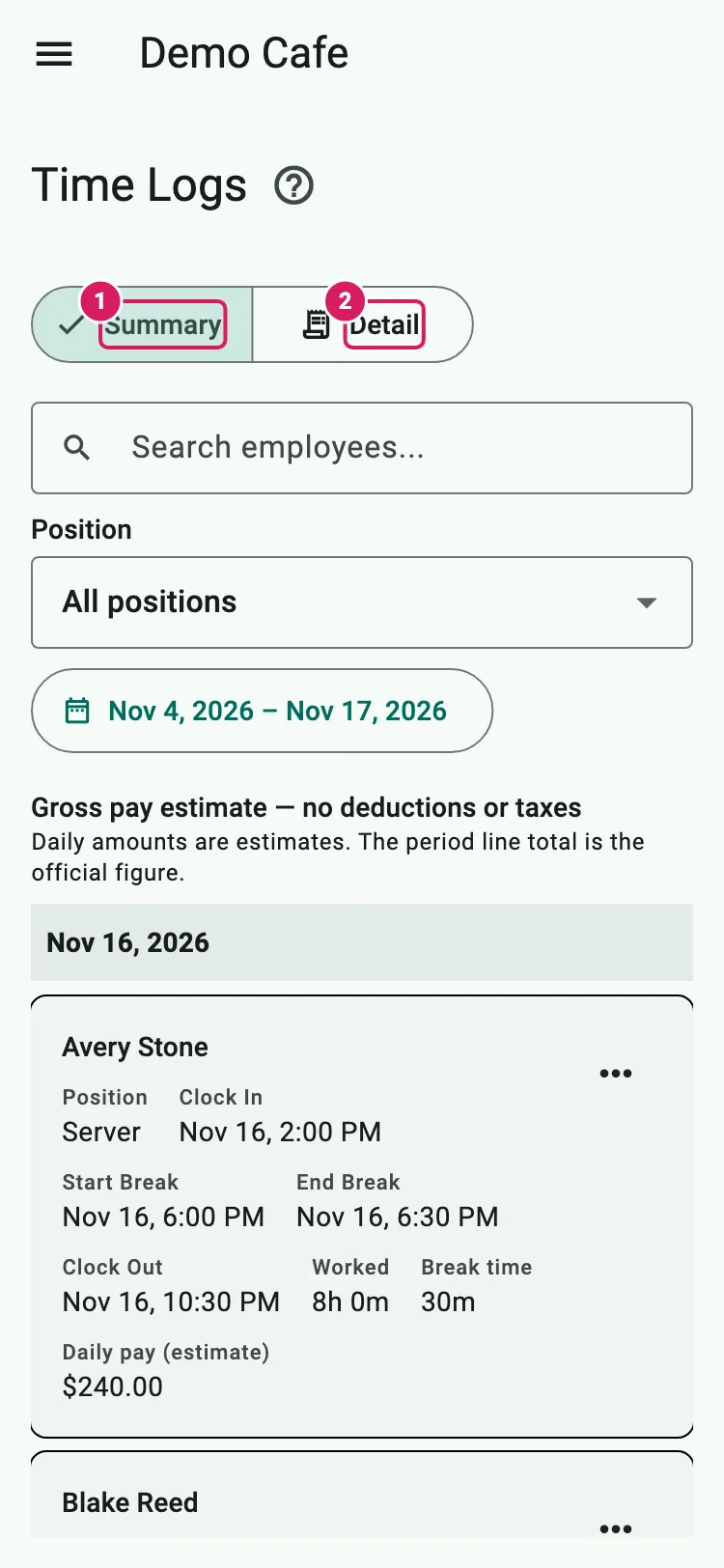
Parts of the screen
Section titled “Parts of the screen”- The Summary tab: one row for each shift.
- The Detail tab: one row for each punch (see Time Logs: Detail).
Options and filters
Section titled “Options and filters”- The search box finds an employee by name (Search employees...).
- Position limits the rows to one position. Its choices are All positions, No position and each active position.
- The dates button shows the range, for example from the first to the last day. Touch it to pick another one. A range can reach back one year and is cut to 90 days; when that happens the page says "Shift summary ranges are limited to 90 days. The end date was adjusted."
Actions
Section titled “Actions”- On a narrower screen, Details on a row opens the whole row. When a shift has several breaks, the row says how many, and View opens the list of them.
- More actions on a row, for managers who may edit time, offers Fix clock-in, Fix clock-out, Add break, Remove break, Void punch and Add Missing Day for that employee on that date. Each asks for a reason. See Fix a shift.
Colours, icons and badges
Section titled “Colours, icons and badges”- The columns are Name, Position, Clock In, Start Break, End Break, Clock Out, Worked and Break time.
- A person with permission to view payroll also sees Daily pay (estimate). The page says that it is a gross pay estimate, and that the total of the line of the pay period is the official figure.
- When a search or the position filter hides rows, the date above each group says "filtered" (for people who see pay).
- A row marked Self-edit was approved by the person it is about, because no other manager could.
Phone and desktop
Section titled “Phone and desktop”On a phone each shift is a card. On a desktop the table shows all the columns. On a narrower screen it shows fewer columns, and the rest are in the details of the row.
Common questions
Section titled “Common questions”No shifts show. The page says "No shifts in this date range." when the range is empty and "No shifts match your search or filters." when a search or a filter hides them all.
Why is a row missing a clock-out? The shift is still open, or the employee forgot to clock out. Add the missing time with Add a missing day.