Set up a new tablet
At a glance
Section titled “At a glance”- Time: about fifteen minutes, plus one punch for each employee.
- Who: a manager who may manage kiosks, at the tablet.
- Difficulty: medium.
Purpose
Section titled “Purpose”Turn a tablet into a kiosk that employees can use all day: set up where it stands, connect it to your company, and let each employee punch once so that it also works when the connection drops.
Ingredients
Section titled “Ingredients”- Permission to manage kiosks and to manage employees.
- The tablet with the kiosk app installed, its charger, and a place for it where the Wi-Fi reaches.
- An active location (see Locations).
- A PIN for each employee, if the company identifies with a PIN.
Expected result
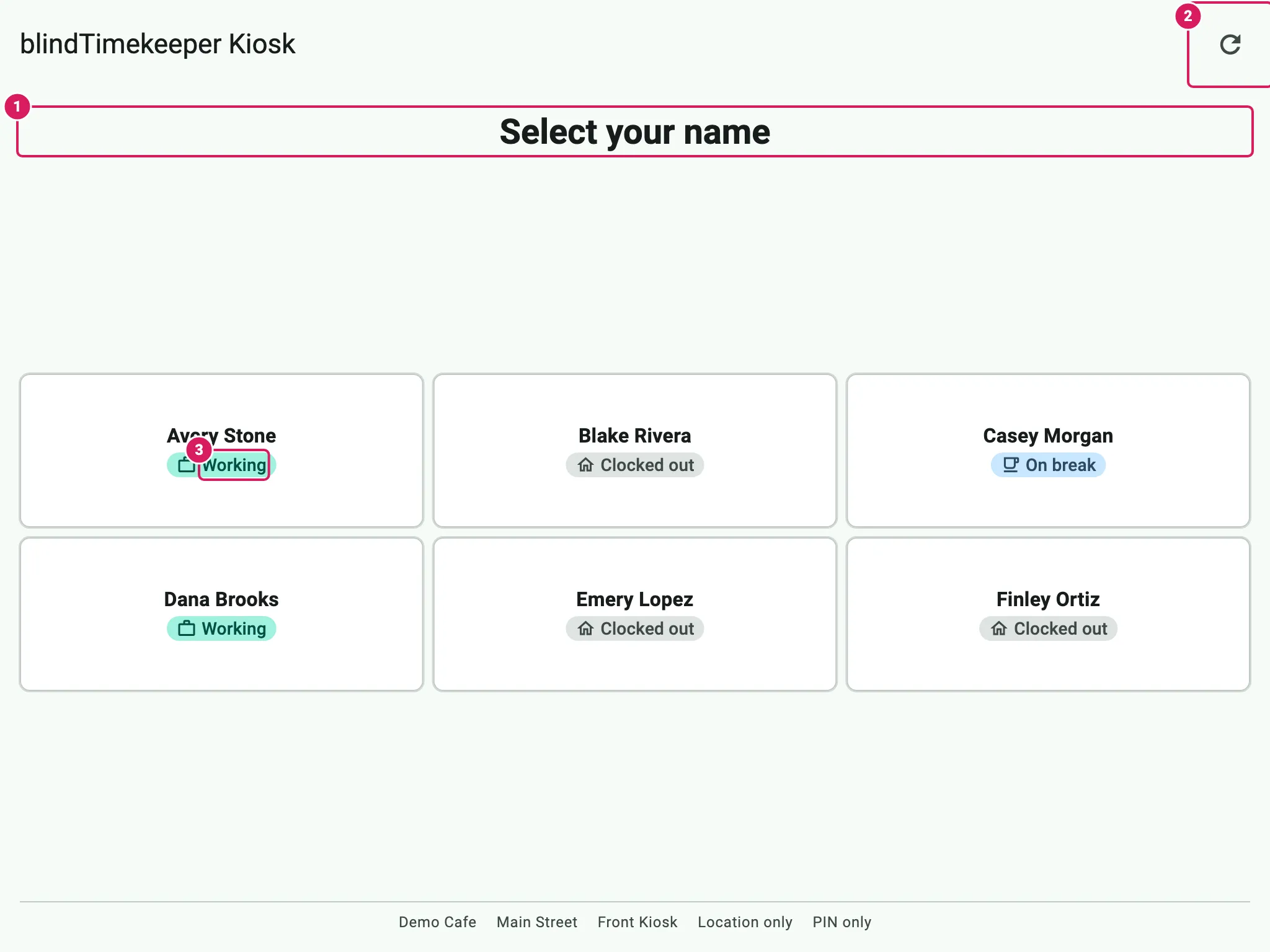
Section titled “Expected result”The tablet shows the list of employees of its location, takes punches, and the kiosk reads Paired / ready in Settings, Kiosks. Each employee has punched once while the tablet was online.
- Prepare the place and the tablet. The pilot checklist asks for these: the tablet is in single-app mode (on an iPad, Guided Access), auto-lock is off, the orientation is fixed, the charger stays plugged in, and Wi-Fi covers the spot where the tablet stands.
- In Settings, Kiosks, check how employees identify (QR only, PIN only or QR with PIN fallback) and the PIN lockout. The choice applies to every kiosk of the company.
- Give each employee a PIN if you use one. In Employees, a row that says Not configured has none: open Set PIN. See Add an employee and set a PIN.
- Touch Add kiosk, enter the Kiosk name, choose the Location and the Employee roster, and touch Save kiosk. A window shows a QR code and the same code as text, valid for 10 minutes. If you set up the tablet away from the computer, turn on Remote setup (60 minutes) and send the code with the share button.
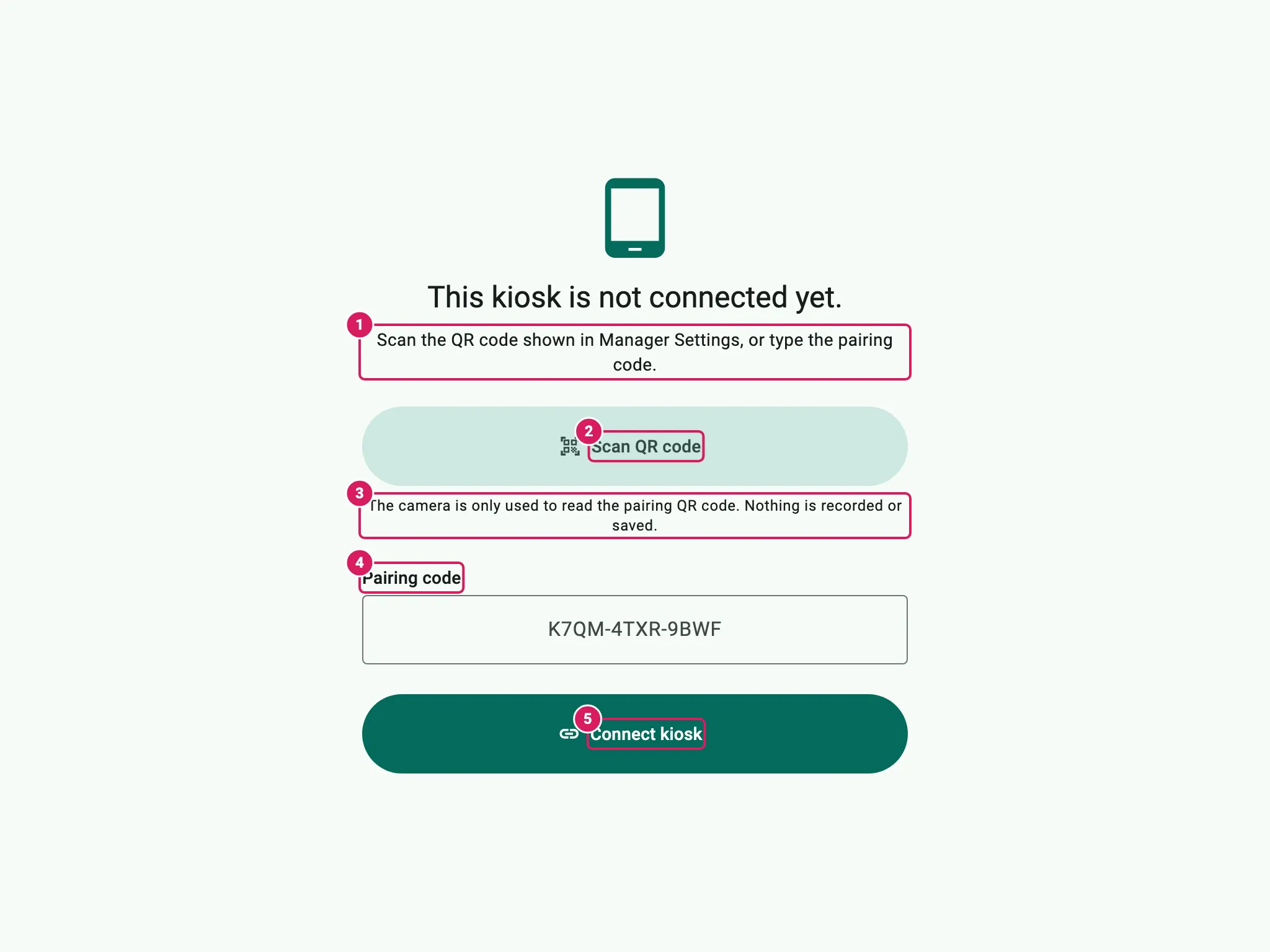
- On the tablet, touch Scan QR code and point the camera at the code, or type the code in Pairing code and touch Connect kiosk. Then touch Close pairing code on the computer.
- Have each employee find their name, clock in or out once and type their PIN, while the tablet is connected.
- If you want the tablet to keep working when the connection drops, turn on offline punches: Turn on offline punches.
Check your work
Section titled “Check your work”- The kiosk reads Paired / ready, and the tablet shows the employee list.
- Each employee's card changed its status after their first punch.
- The tablet stays on and awake at the place where it will stand.
What next
Section titled “What next”- Pair a kiosk, the same connection with more detail
- The offline rule and the first-day rule
- Clock in, clock out and take a break at the kiosk