Turn offline punches on
At a glance
Section titled “At a glance”- Time: about two minutes to turn on, then a minute of reading for the first week.
- Who: a manager who may manage kiosks.
- Difficulty: easy.
Purpose
Section titled “Purpose”Let your kiosks keep taking punches when the connection drops, and know what to expect afterwards. The setting is off until you turn it on.
Ingredients
Section titled “Ingredients”- Permission to manage kiosks.
- At least one paired kiosk (see Pair a kiosk).
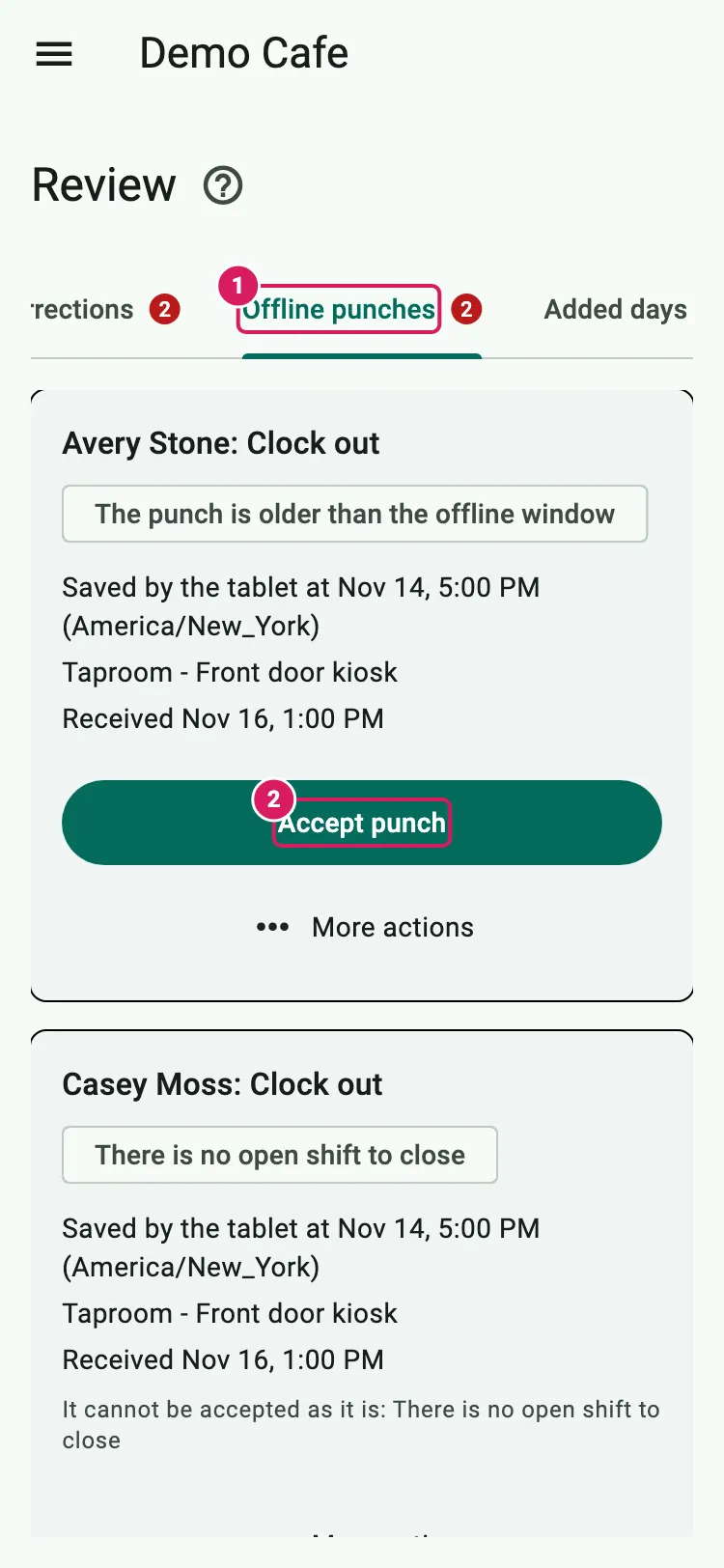
- Access to Review, Offline punches, to decide the punches that need a manager.
Expected result
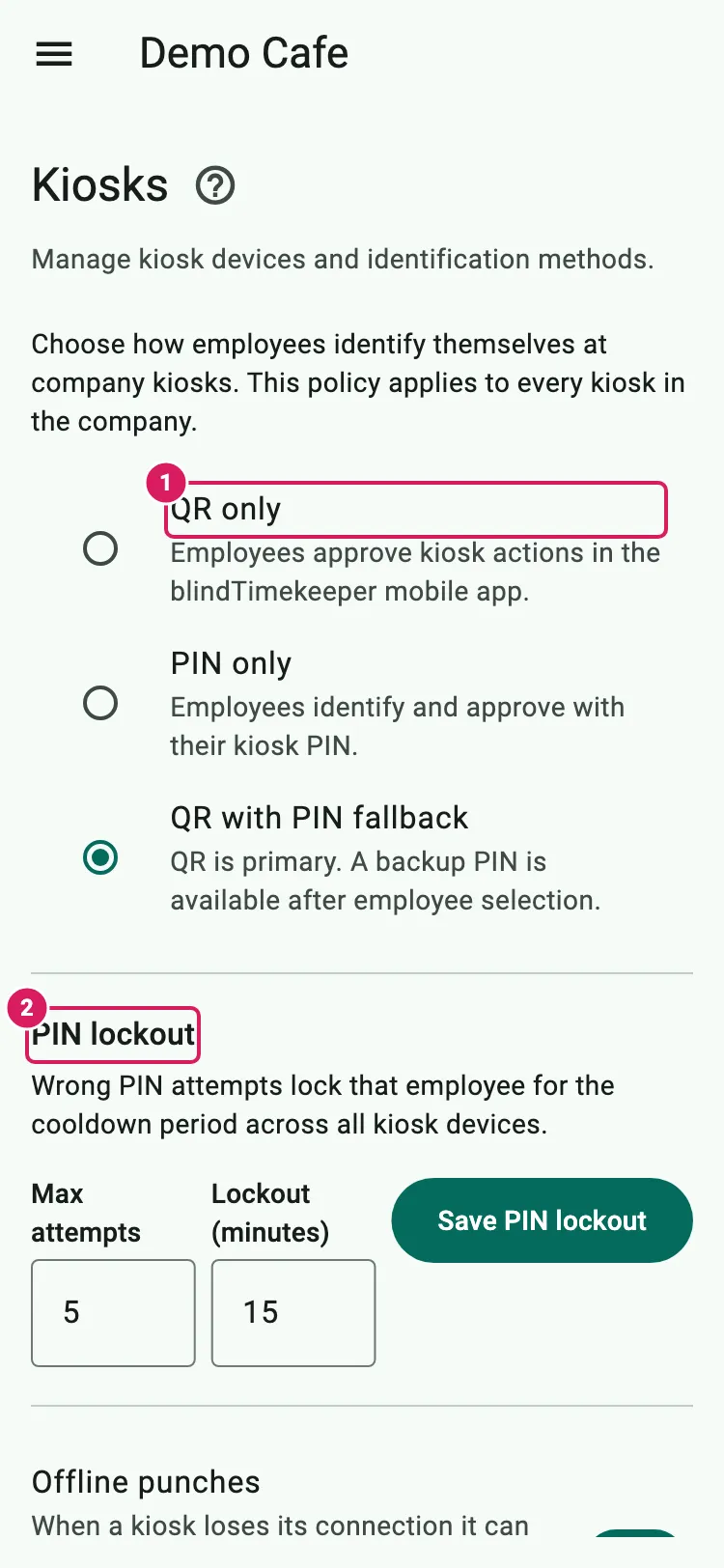
Section titled “Expected result”In Settings, Kiosks the Offline punches switch is on and shows the window Offline punches up to this many hours old. A kiosk that loses its connection saves punches and sends them when it is back. Those the server can check become normal time entries; the others wait in Review.
- Open Settings, Kiosks and find Offline punches.
- Switch it on. A window titled "Turn on offline punches" shows the Offline window, 24 hours to begin with, and explains that a punch that cannot be checked needs review. Touch Turn on. The page says "Setting saved."
- To change how old a saved punch may be, choose a number in Offline punches up to this many hours old: 1, 2, 4, 8, 12, 24, 48 or 72 hours. A window titled "Change the offline window" asks you to confirm; touch Save window.
- On every tablet that is new or was re-paired, have each employee punch once while it is online (the first-day rule). See The offline rule and the first-day rule.
- From now on, open Review, Offline punches and decide each held punch: Accept punch, Accept with a changed time or Reject punch.
Check your work
Section titled “Check your work”- The switch reads on and the window shows the hours you chose.
- A tablet that has not yet synced says "This kiosk has no connection and has not synced yet. Connect it to the network once before using it offline." Connect it once and it is ready.
- While the tablet holds punches, a bar at the bottom says how many and how old the oldest is.