Today (employee)
At a glance
Section titled “At a glance”Today is the first tab of the employee app. It shows whether you are working, on a break or clocked out, how long, what you did today and how your week is going. It only shows; to punch, use the kiosk.
The screen
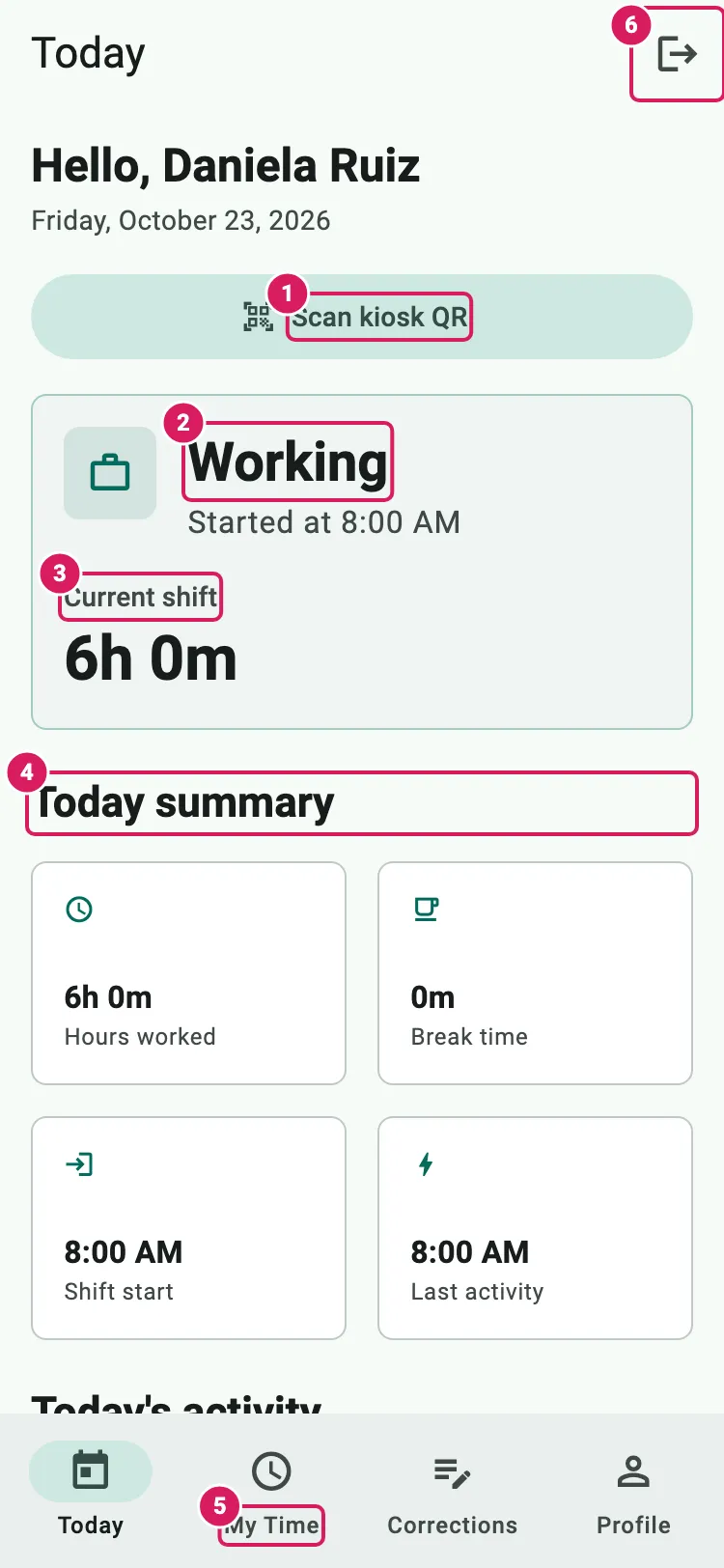
Section titled “The screen”At the top are a greeting, the Scan kiosk QR button and the status card. Under them are the summary of today, today's activity and the hours of your week. A bar at the bottom moves between the four tabs.
Parts of the screen
Section titled “Parts of the screen”- The Scan kiosk QR button opens the camera to approve a punch you asked for at the kiosk.
- The state: Working, On break or Clocked out, with a line that says when it started (for example "Started at 9:00").
- The Current shift time: how long the shift has run. On a break the label is Current break; when you are clocked out it says Worked today.
- The Today summary: Hours worked, Break time, Shift start and Last activity.
- The My Time tab: your history of shifts.
- The Sign out button, at the top.
Options and filters
Section titled “Options and filters”None. The screen shows today and the current week.
Actions
Section titled “Actions”- Scan kiosk QR opens the scanner. See Approve a kiosk punch from your phone.
- The bottom bar opens Today, My Time, Corrections and Profile.
- Sign out ends your session on this phone.
Colours, icons and badges
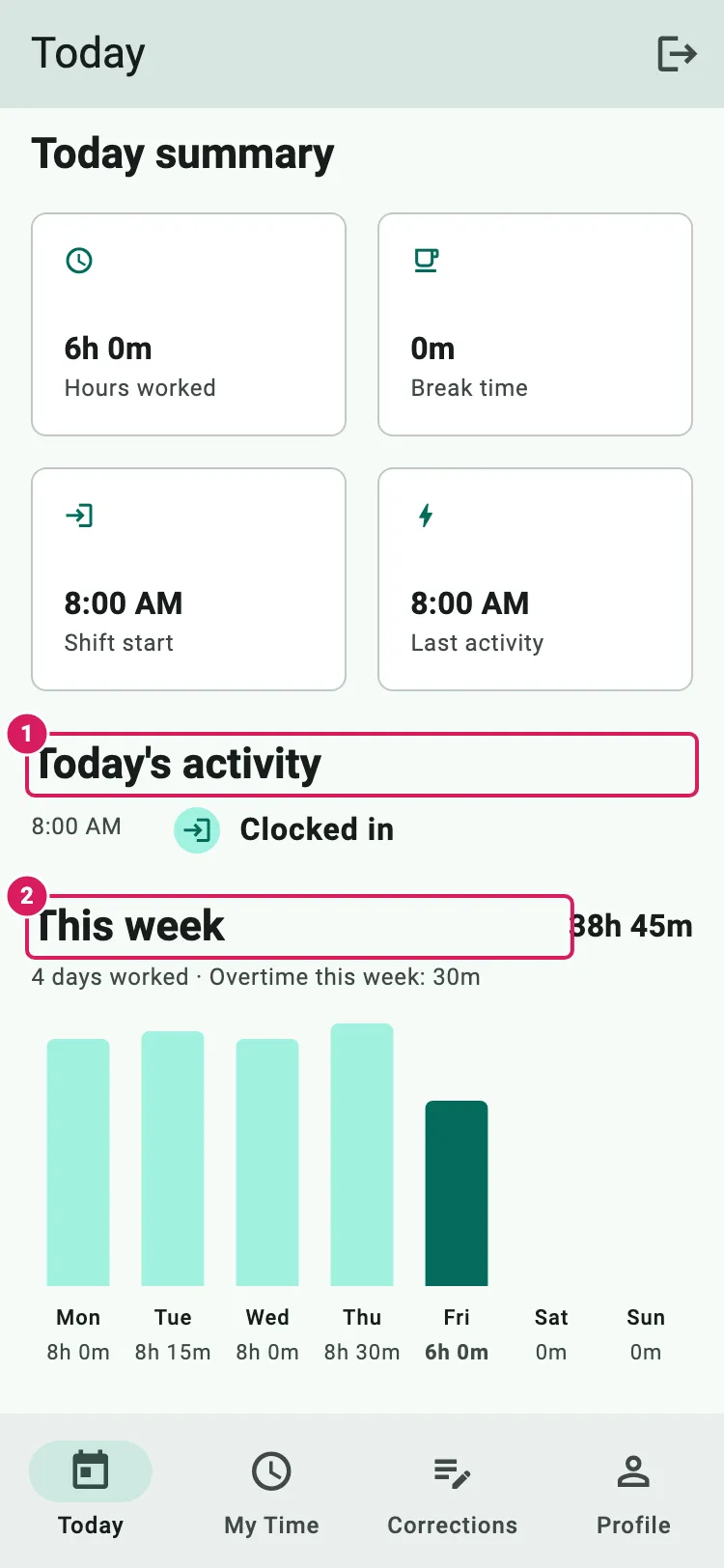
Section titled “Colours, icons and badges”The state has a color, an icon and a word. Today's activity lists each punch of the day: Clocked in, Break started, Break ended and Clocked out, each with its time. This week shows the total of the week, a bar for each day, the number of days worked and, when there is some, the overtime of the week. With no activity the page says "No activity today", and with no hours yet "No hours yet this week".
Phone and desktop
Section titled “Phone and desktop”The employee app is made for a phone. On a phone the Scan kiosk QR button sits under the greeting; on a wider screen it sits beside it.
Common questions
Section titled “Common questions”Why does it say "No activity today"? You have no punch yet today.
Which day does my week start on? The first day of the pay week of your company.
A time is wrong. Ask for a fix in Corrections.