Locations
At a glance
Section titled “At a glance”A location is a place where your people work and where a kiosk stands. Use this screen to add a place, change its details or switch it off. Employees and kiosks are given a location, and a kiosk can list only the employees of its location.
The screen
Section titled “The screen”The page lists your locations, one line each, with the name, then the time zone and the address under it, and a badge with Active or Inactive. The button at the top adds a location. Above the list, a Plan and trial section shows what each location is on (see below). Touch a line to open it. You need the permission to manage locations to change anything.
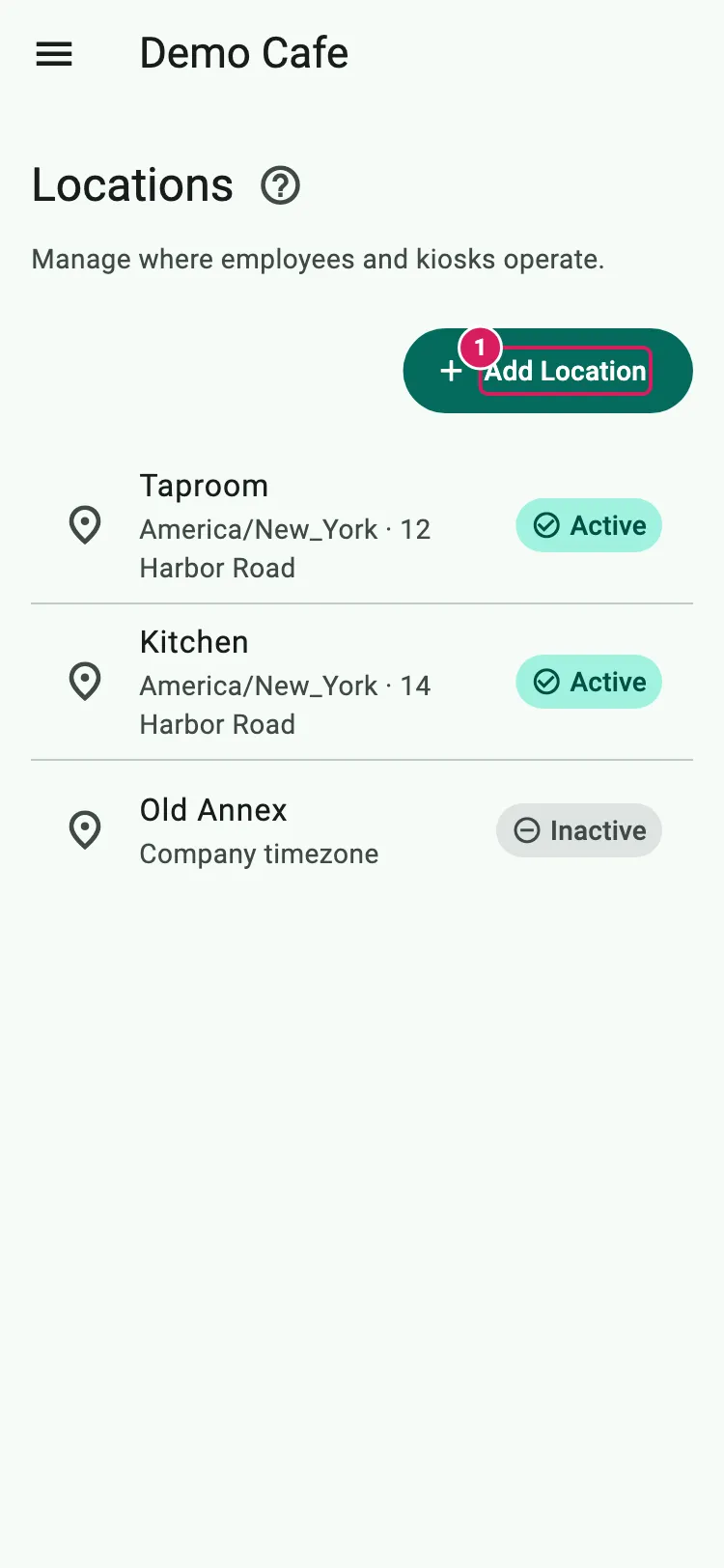
Parts of the screen
Section titled “Parts of the screen”- The Add Location button opens the form for a new place.
Plan and trial
Section titled “Plan and trial”Each location has its own plan. The Plan and trial section lists every active location with its plan, how many of its employees' seats are used ("12 of 15 employees"), the days left of the trial, any discount, and the monthly and yearly price. A badge says where the location stands: Trial, Trial ending, Grace period, Trial ended, Active, Payment due, Payment overdue, Suspended or Free.
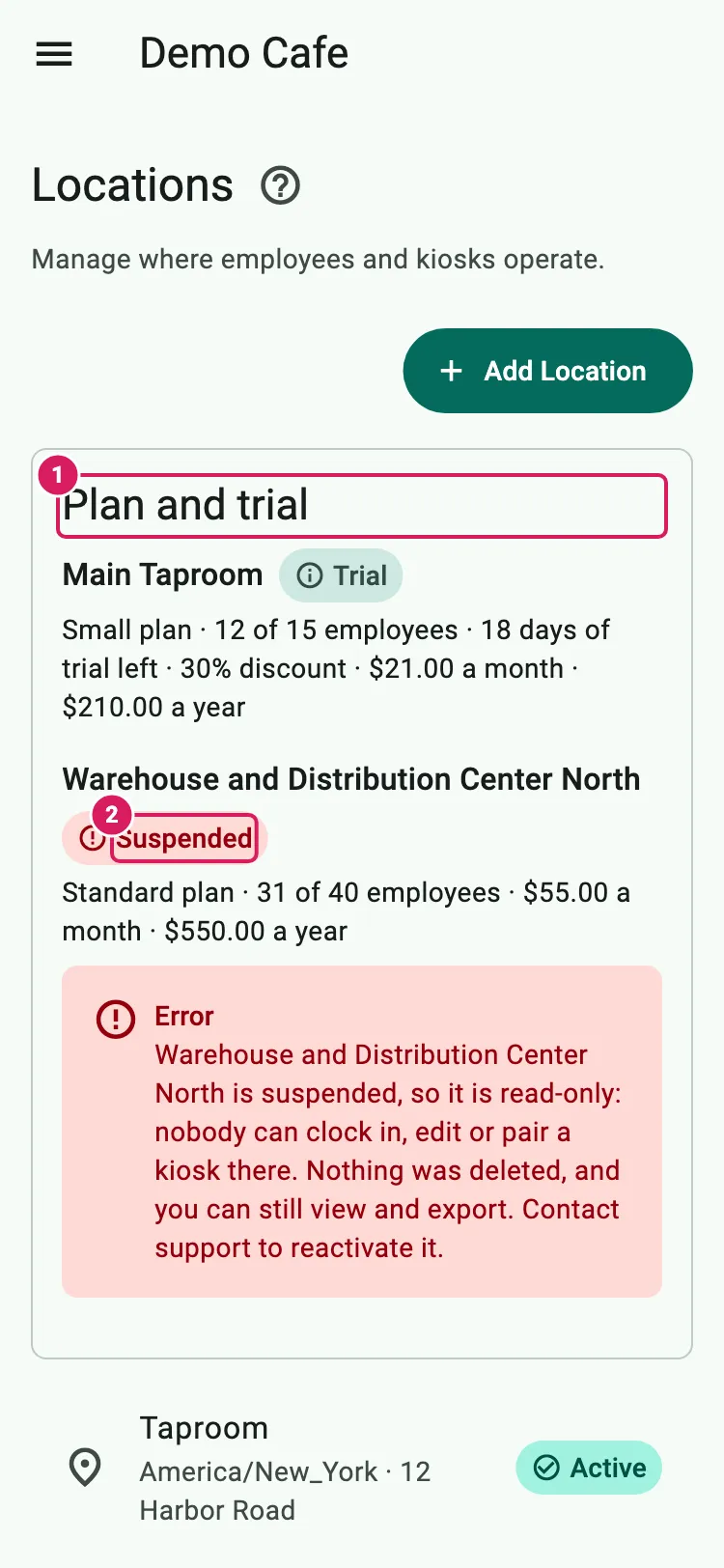
- A new location starts with a free trial of 30 days. A location is billed by the plan that fits its number of active employees.
- From 7 days before the trial ends, owners and managers see a notice at the top of every page and in this section: Trial ending. Nothing changes yet.
- When the trial ends there are 3 more days, the Grace period: everyone can still clock in and edit, and a notice says how many days are left. After the grace the location becomes read-only (Trial ended).
- A location with Payment due (a payment that failed) gets the same 3 days from the day it failed. If the payment is not fixed by then it becomes Payment overdue and read-only.
- A read-only or Suspended location is read-only at once: nobody can clock in, edit or pair a kiosk there, and the kiosk says so. Nothing is deleted, and you can still sign in, view and export. Contact support to activate a plan or fix the payment.
- A location at its limit cannot add another employee, but everyone already there keeps clocking in. If a plan change leaves it above its limit, nobody is removed.
- Only support changes a plan for now. The page shows the plan; it does not change it.
Options and filters
Section titled “Options and filters”The list has no search and no filters. A location you switched off stays in the list, marked Inactive, so you can bring it back.
Actions
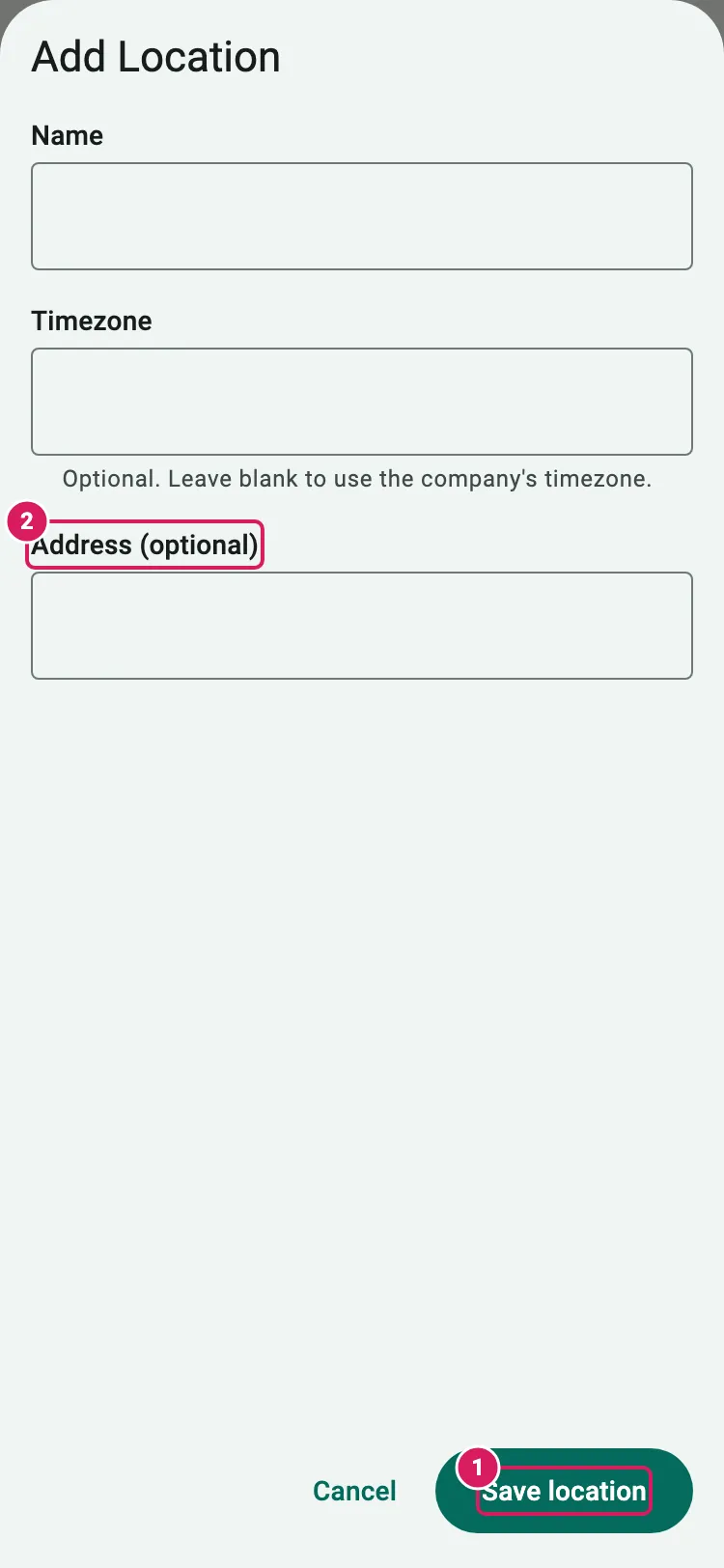
Section titled “Actions”- Add Location opens a form with Name, Timezone and Address (optional). Touch Save location. Without a name the form says "Enter a location name."
- Touch a line to change any of them. The edit form also has an Active box: clear it and save to switch the location off. The page says "Location deactivated." with an undo, and "Location reactivated." if you undo.
- Timezone is optional. Leave it blank to use the company's time zone; the list then says "Company timezone" under the name.
Colours, icons and badges
Section titled “Colours, icons and badges”The badge on each line has an icon and a word, Active or Inactive. The word is always there, the colour only helps.
Phone and desktop
Section titled “Phone and desktop”On a phone the lines use the whole width and the form opens as a full screen. On a desktop the same list sits beside the menu and the form is a dialog.
Common questions
Section titled “Common questions”Can I delete a location? No. Switch it off. A shift or a punch that used it keeps its place in the history.
The list is empty. The page says "No locations yet." Add one before you pair a kiosk.
Where do I choose the location of an employee or a kiosk? In the employee form, and in the kiosk form under Settings, Kiosks. Only active locations can be chosen for a new assignment.