Export company data
At a glance
Section titled “At a glance”- Time: about two minutes.
- Who: a manager who may export company data.
- Difficulty: easy.
Purpose
Section titled “Purpose”Make a copy of your company's timekeeping data now and save it on your computer, for example before a big change or to keep a record outside the app.
Ingredients
Section titled “Ingredients”- Permission to export company data.
- A connection: with no connection the export does not run.
- A safe place to keep the file.
Expected result
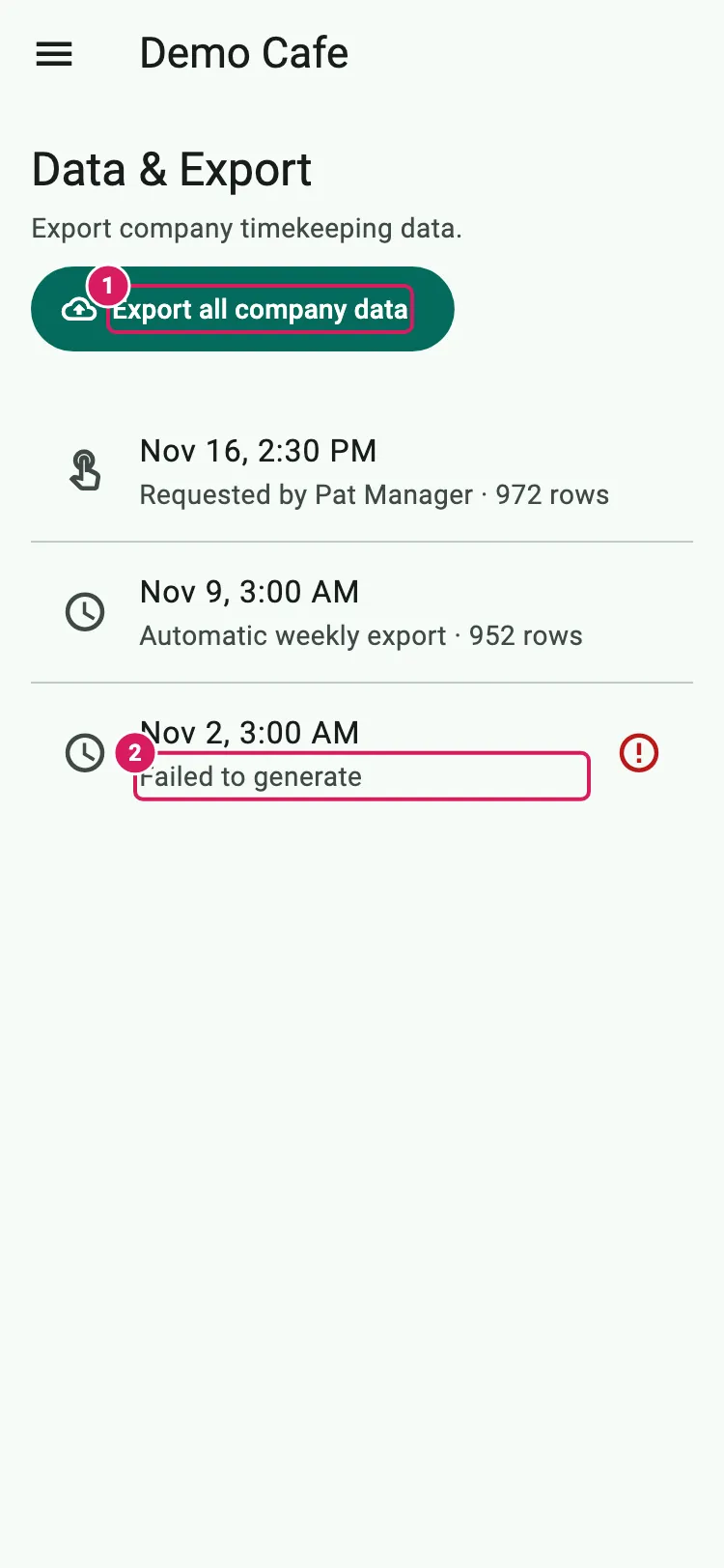
Section titled “Expected result”A new copy at the top of the list in Data & Export, and a JSON file saved on your computer.
- In Settings, open Data & Export.
- Touch Export all company data. Wait for "Company data export generated."
- Touch the new line at the top of the list to open it.
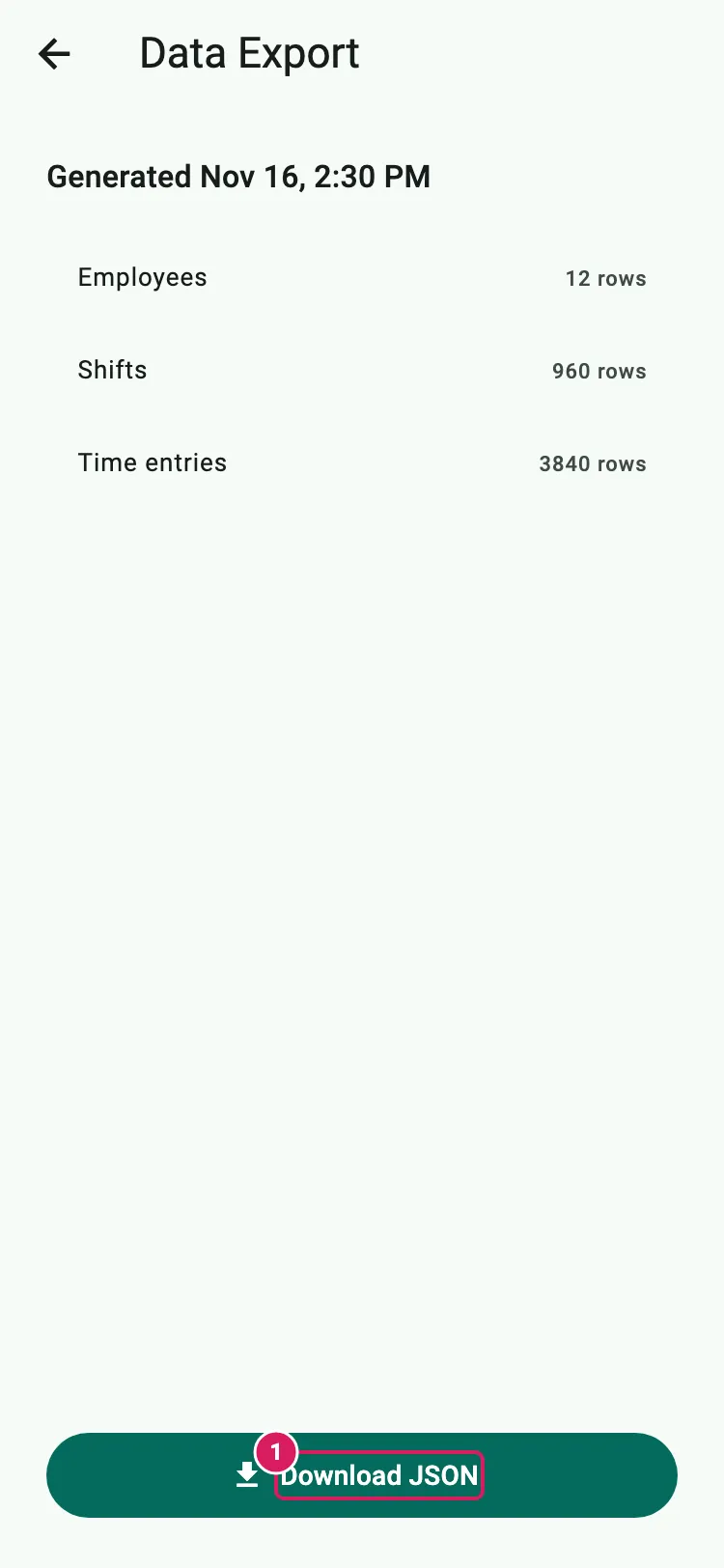
- Look at the groups and their rows, then touch Download JSON.
Check your work
Section titled “Check your work”- The new line is first in the list and says "Requested by" and your name.
- The open copy shows rows for the groups you use, for example employees and shifts.
- A file named
company_export_followed by an identifier, ending in.json, is in your downloads.