Work the review queue
At a glance
Section titled “At a glance”- Time: a minute or two per item.
- Who: a manager with permission for at least one tab.
- Difficulty: medium.
Purpose
Section titled “Purpose”Decide the things that wait for a manager: correction requests, punches held from offline kiosks and days another manager added.
Ingredients
Section titled “Ingredients”- The Review page. You only see the tabs you have permission for.
- A number on a tab or on the Review menu entry means items are waiting.
Expected result
Section titled “Expected result”Each item you decide leaves the queue and its tab count goes down. An approved change is added to the history as a new adjustment, and the punches that were there stay in the history.
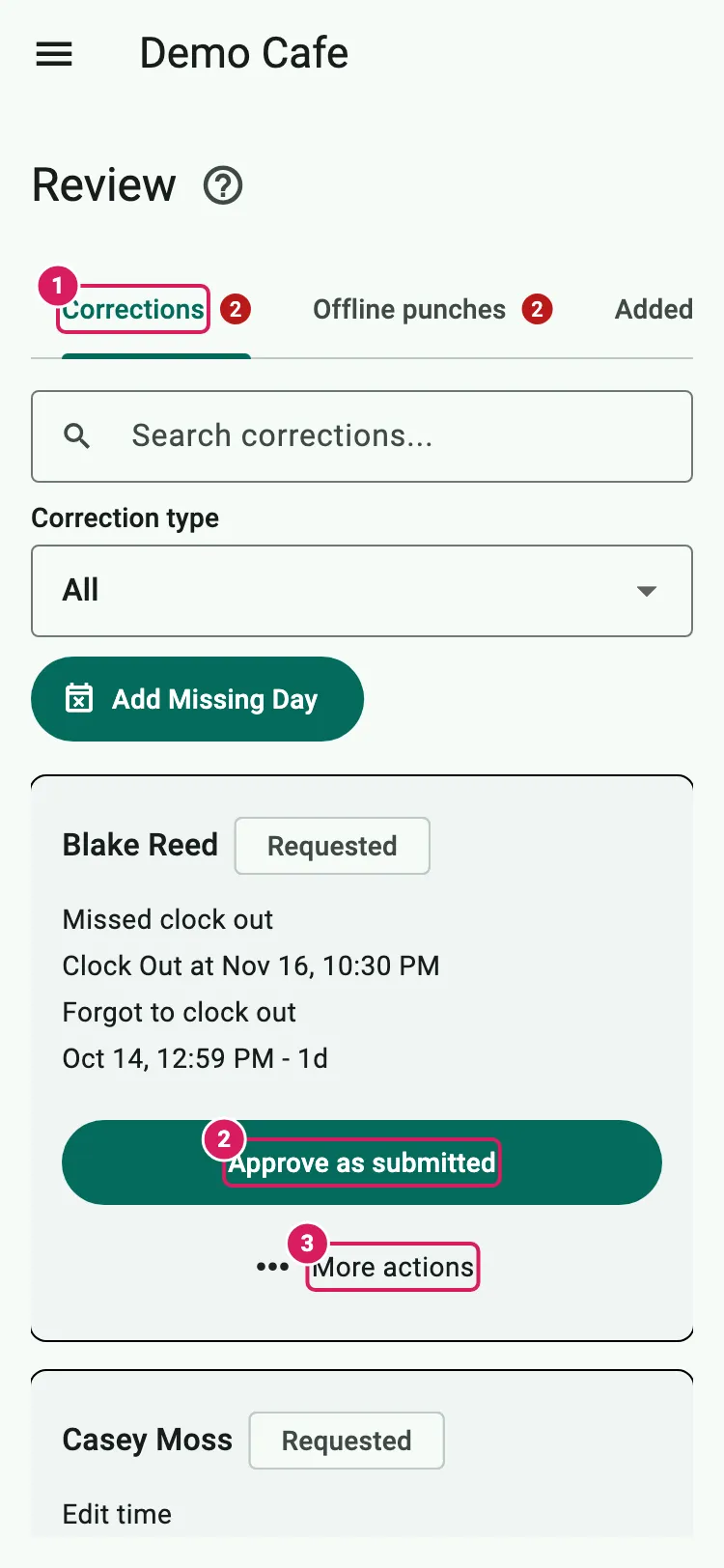
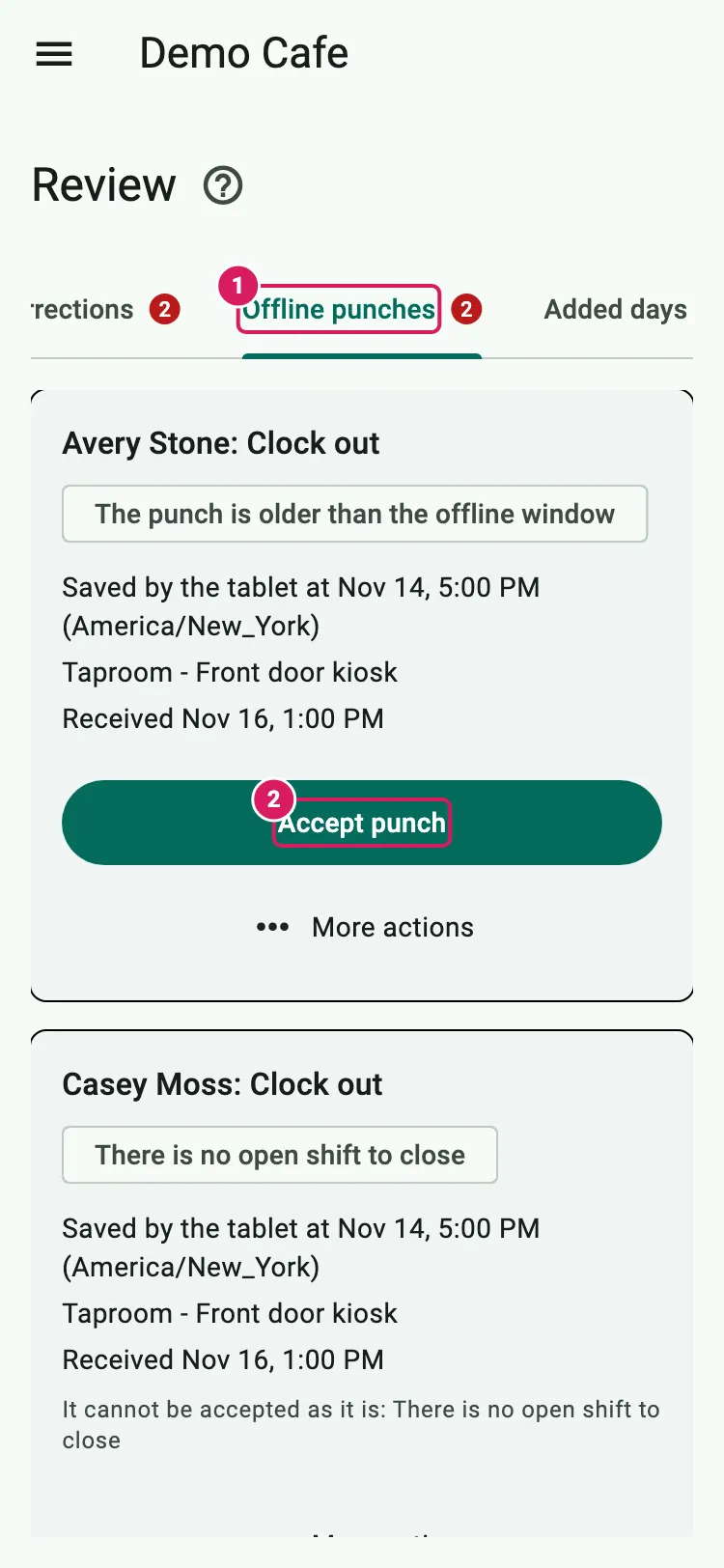
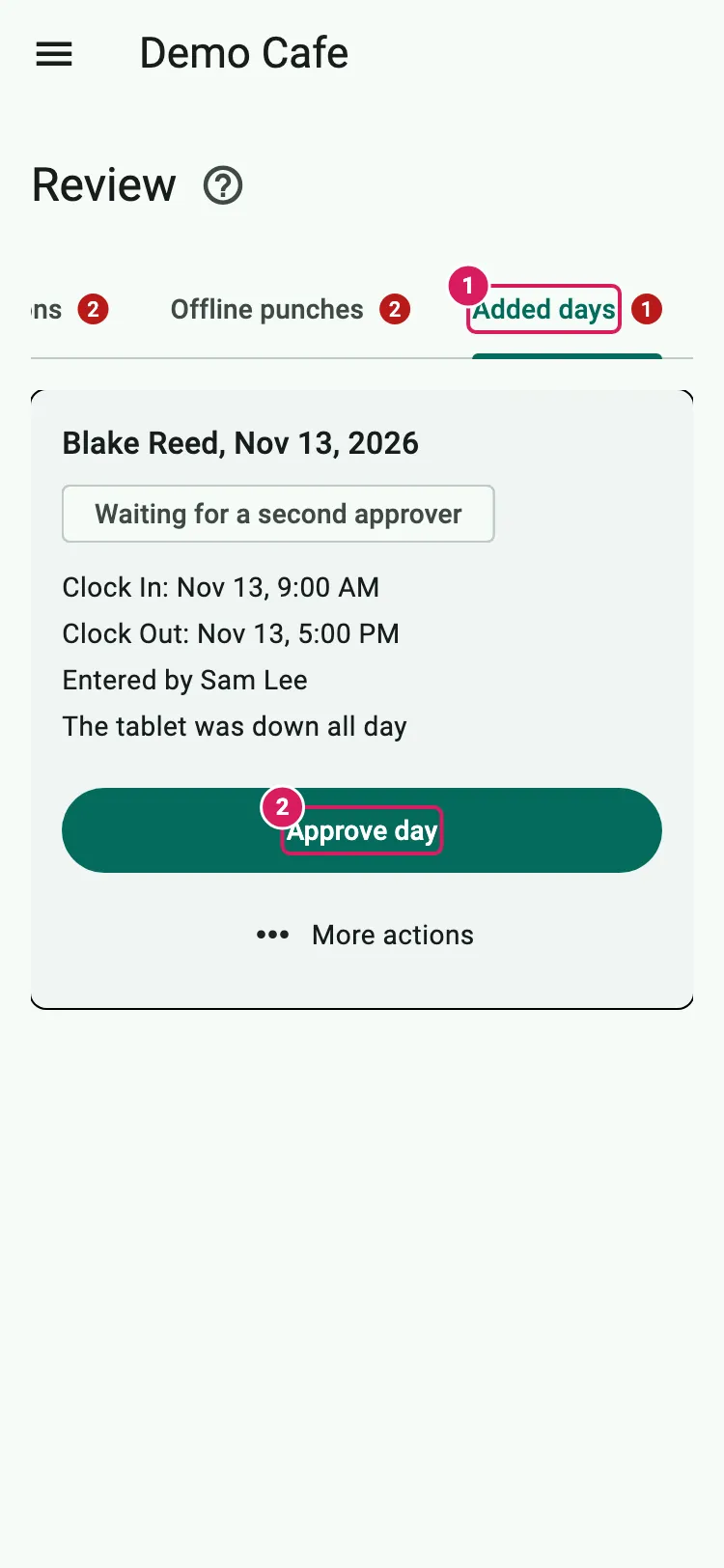
- Open Review and the tab you need: Corrections, Offline punches or Added days.
- On a correction, read what was asked and the employee's reason, then choose Approve as submitted. Open More actions for Approve with changes or Reject.
- On a held punch, read why it needs review, then choose Accept punch. Open More actions for Accept with a changed time or Reject punch.
- On an added day, choose Approve day. Open More actions for Reject day or Withdraw.
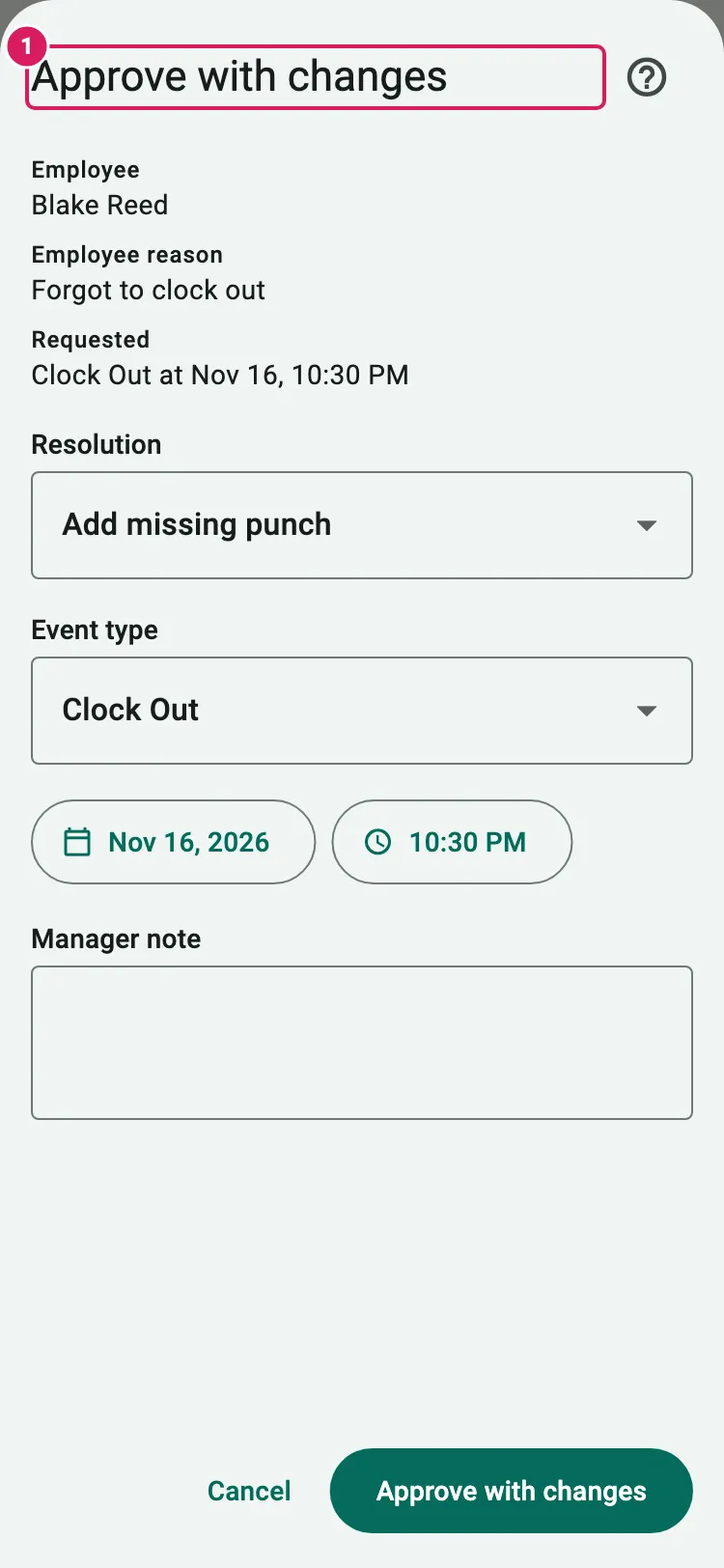
Notes. A note is optional for Approve as submitted and for Accept punch. It is required for Approve with changes, Reject, Accept with a changed time, Reject punch, Reject day and Withdraw.
Approve with changes lets you choose the resolution (Add missing punch, Replace punch time, Void punch or Approve without changing punches), the event type and the date and time. Replace and void are offered only when the request points at an existing punch.
A held punch that cannot be accepted as it is shows why and has no Accept punch button. You can still use Accept with a changed time or Reject punch.
A day another manager added shows "Waiting for a second approver" when the company requires one. Only the manager who added it can use Withdraw.
On a correction card, the age is how long ago it was requested, in hours or days. A held punch shows when it was received.
The Add Missing Day button at the top of the page adds a day for an employee.
Check your work
Section titled “Check your work”The item is gone from the list and the number on its tab went down. If another manager decided it first, you see "Someone else already decided this." and the item is already decided.